You’d like to generate discounts using SmashPops, but you don’t want the discounts to apply to products that are already on sale. Let’s see how to configure those discounts.
Here is a video tutorial :
One important thing to note first : merchants mostly use the “compare at” price to set products on sale. This is what we’ll use in this tutorial as well. But it’s important to remember that the “Compare at” price is not considered as a discount by Shopify, it’s just an “ornament” and is considered as the real price : hence any “real” discount can be applied to it (even if the discount is not supposed to be combinable with other discounts). This is something that merchants have complained about for a while.
Anyway, the plan is the following :
- Create a collection that only contains the products that are not on sale.
- Set up the discount so it only applied to this collection.
1. Create a collection of non-sale products
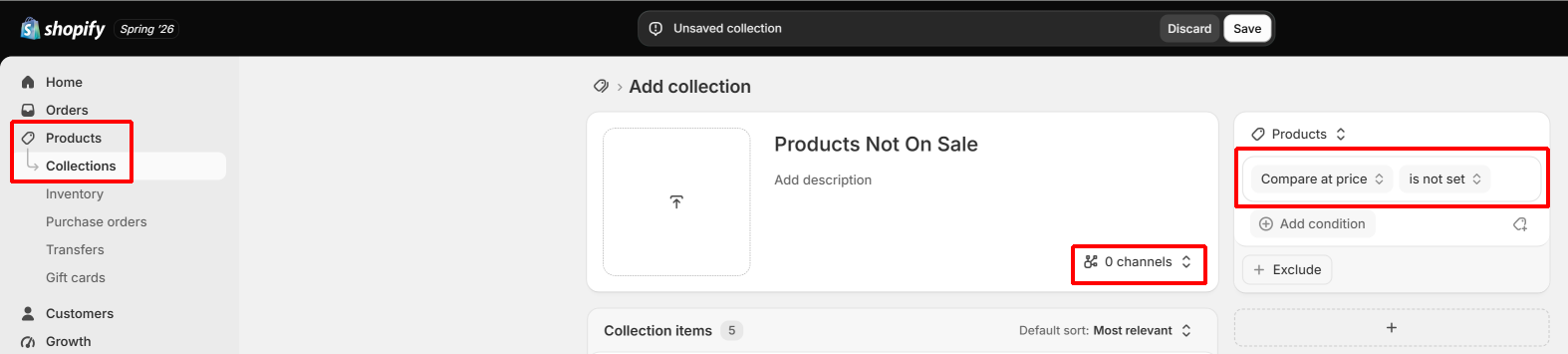
In Shopify, go to “Products > Collections”, click on “Add collection”, then give it a name (“Products Not On Sale” for instance), unselect all the channels (so that it is not displayed publicly) and set a condition “Compare at price > is not set” (cf screenshot below). Save the collection.
2. Set your discount to only apply to this collection
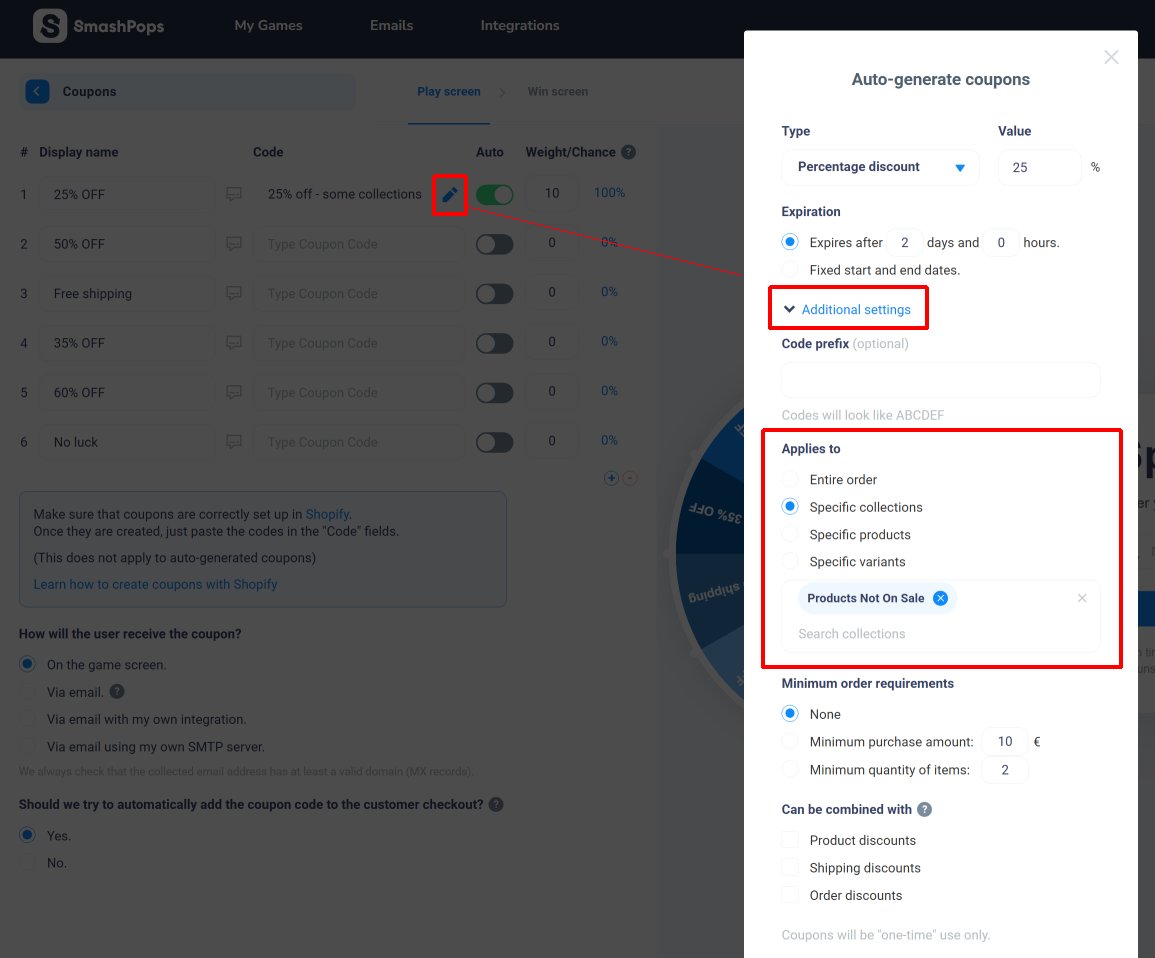
In SmashPops, go to “Settings > Coupons”. Edit your discounts and in “Additional settings”, select “Applies to > Specific collections” with the new “Products Not On Sale” collection you just created.
Hit “Save” and you should be good to go! The newly created discounts will now be applicable only to products that are not on sale.
If you set items on sale using automatic discounts, then just also make sure that “Can be combined with” has no checked box.