Sometimes you want to give a discount that can be applied to any product, but there is one that you don’t want the discount to apply to.
Let’s see how to do this.
1. Create a collection with all the products except one
Go to your Shopify “Products > Collections” section and create a new collection.
Select “Smart” under “Collection type” and uncheck all publishing channels (so that the collection is not public).
Then, in “Conditions”, add a condition that will be true for all your products except the one to exclude. For instance:
- If the product to exclude has “Hell’s Gate” in its title and no other product does, select “Title > Does not contain > Hell’s Gate”.
- One more reliable way is to add a tag to your product to exclude, for instance “no-smashpops-discount” and then select “Tag > Is not equal to > no-smashpops-discount”.
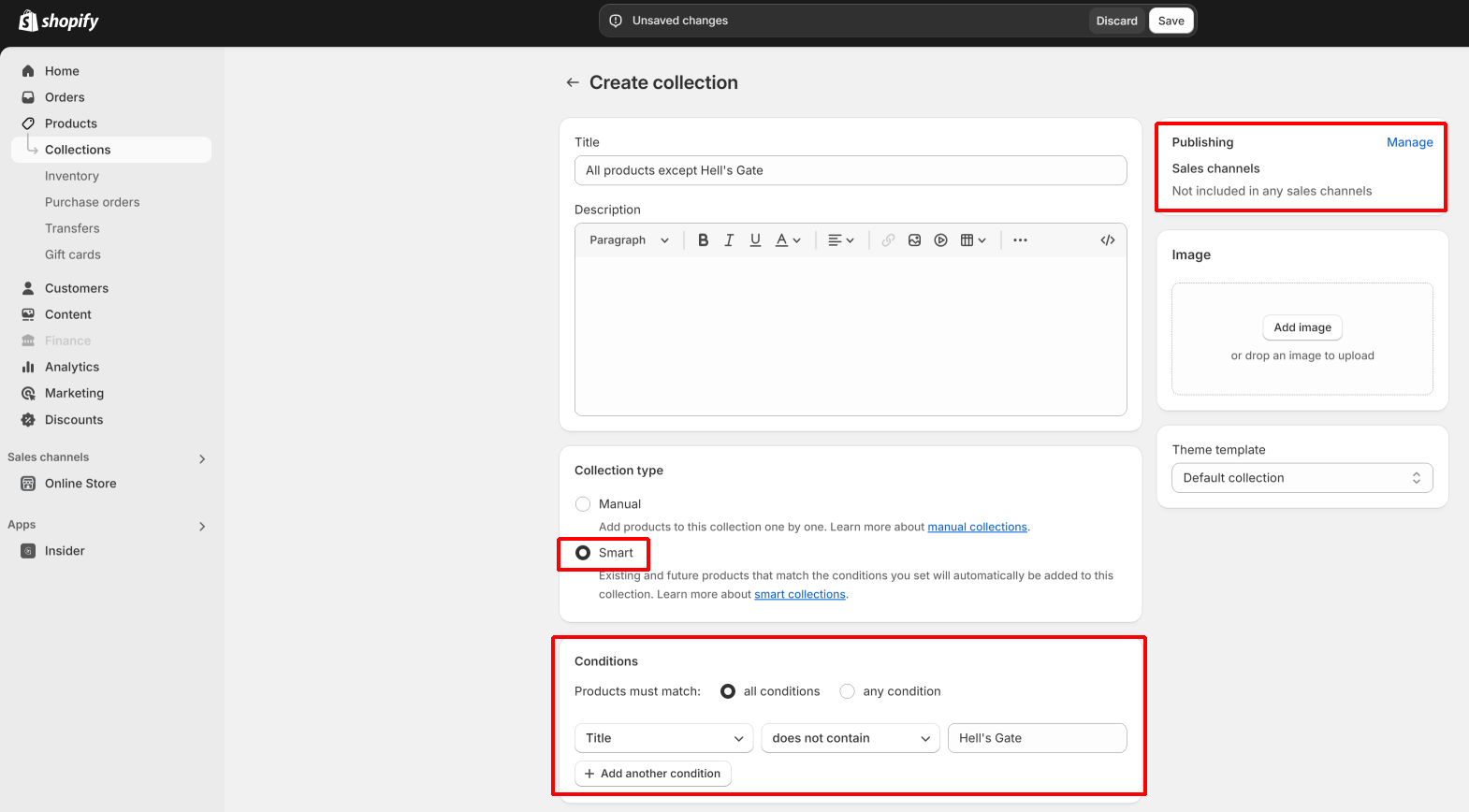
Hit “Save”.
2. Edit your SmashPops discount
From there, go to your SmashPops discount auto-generation settings. And then in “Applies to”, select “Specific collections” and select the collection we just created (“All products except Hell’s Gate” in our case).
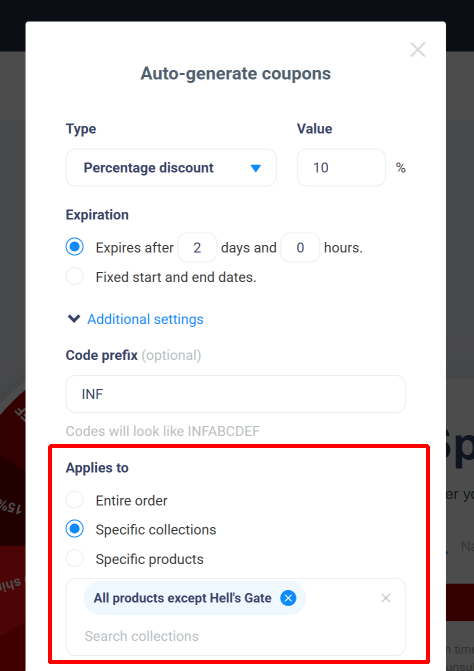
That’s it! Save your popup and now the discount we just modified should no longer be applicable to the excluded product.